

A client called me last year, stressed out of their mind. Their homepage was a wreck. Wrong fonts, spacing everywhere, one whole section just gone. They’d been editing their theme’s files straight from the dashboard for weeks. Then a theme update dropped, they clicked it, and the lot wiped in a second.
None of that had to happen. A WordPress child theme would have caught every edit and kept it safe. Think of it as a thin layer that sits over your main theme and holds your changes, so when the main theme updates, your work stays put.
What a child theme is, in plain terms
Your live theme is the parent. A child theme is a second, mostly empty theme that points back to it. WordPress loads the parent first, then layers the child on top and lets it change or swap out bits.
Every edit you make lives in the child. A colour change, a custom template, a snippet in functions.php, all of it sits there. The parent updates, and your child folder doesn’t budge.
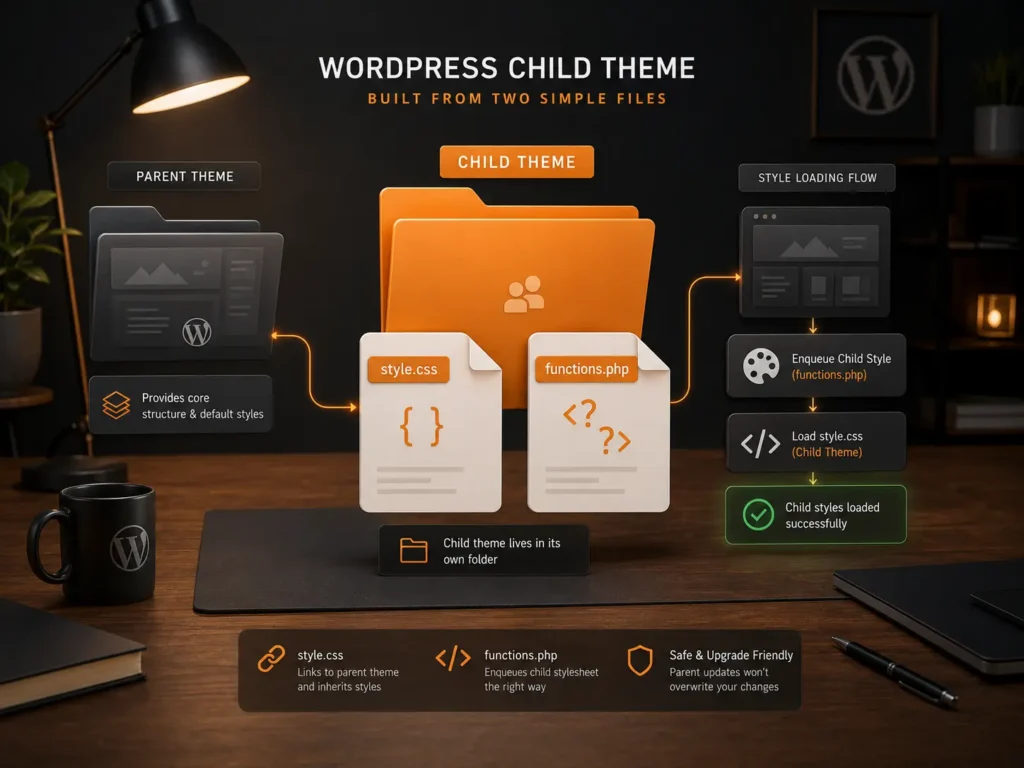
The whole setup runs on two files. A style.css that names the parent, and a functions.php that pulls in the parent’s styles. That’s the base. Everything else is on you.
Do you even need one?
Quick gut check before you build anything: are you touching theme code, or not?
If you’re editing PHP templates, the header, the footer, the functions file, or stacking on custom CSS that’s too messy to live in the Customizer, then yes, a child theme is worth it. Same story if you’re running a third-party theme that updates a lot, since those updates are the exact thing that will wipe your edits.
If you only change colours and fonts through the Customizer or a page builder, don’t bother. Block theme users can mostly skip it too, because the Site Editor and theme.json cover that ground. And if someone built your theme from scratch for your site, there’s no separate parent updating under you, so the problem pretty much isn’t there.
How to set up a WordPress child theme the right way
Five minutes, give or take. The way I run it:
Open wp-content/themes and make a new folder. Name it after your theme, something like yourtheme-child.
Drop a style.css inside. The header is what flags it as a child and ties it to a parent:
/*
Theme Name: Your Theme Child
Template: yourtheme
*/
Mind the Template line. It has to match the parent folder name letter for letter, or the child won’t attach to anything.
Then add a functions.php to bring in the parent’s styles:
<?php
add_action( ‘wp_enqueue_scripts’, ‘child_enqueue_parent_styles’ );
function child_enqueue_parent_styles() {
wp_enqueue_style( ‘parent-style’, get_template_directory_uri() . ‘/style.css’ );
}
You’ll see old guides push an @import line in the CSS for this. Skip it. The official WordPress Theme Developer Handbook switched to the enqueue method above a long time ago, it’s lighter and dodges a render delay.
Activate the child under Appearance, then Themes. Nothing on the site should look different, since it’s all still loading from the parent. Need to change a template? Copy that file from the parent into your child folder and edit the copy. WordPress reaches for the child’s version first.
If you get stuck, the Learn WordPress child themes lesson runs through it with screenshots.
By hand, or with a plugin?
Comes down to how you feel about a code editor.
| Method | Best for | Keep in mind |
| By hand, two files | Anyone okay with a text editor | Quick setup once you know the header and enqueue snippet |
| Child theme plugin | Beginners, or quick one-off setups | Adds a plugin, and some keep running long after the child is built |
A plugin builds the folder and both files for you, handy if code makes you nervous. Worth remembering though: the plugin’s whole job was to create the theme. Once that’s done, you can switch it off and delete it. No point leaving it running for nothing.
When a child theme isn’t the right move
Child themes are great for adjusting a theme you already like. There are a couple of spots where they’re the wrong call.
If you’re overriding half the parent’s templates and wrestling its markup on every page, you’ve stopped extending the theme and started fighting it. A child theme just papers over a deeper mismatch.
It also never sheds the parent’s weight. The full parent loads underneath it, always. If that parent is heavy, a tidy little child folder can’t undo what it drags in. On a business site where speed and a specific design both count, a theme built from scratch usually wins, because nothing loads that you didn’t ask for. That’s the kind of build our WordPress development team handles.
For most jobs though, adjusting a theme you’re happy with, a child theme is the right answer. Set it up once, keep your edits inside it, and let the parent update without any drama. Would rather not touch any of it? You can start a project and we’ll set it up clean.

FAQs
Does a child theme slow your site down?
Not enough to feel. It loads the parent, plus one small stylesheet and a functions file. With the enqueue setup above, the cost is close to nothing.
Switch themes later, do my changes follow me?
No. A child theme is welded to its specific parent. Move to a different parent and you start fresh, because the templates and styles it was built against are gone.
Can you make a child theme for a block theme?
You can, though it’s a different route. Block themes run on theme.json and the Site Editor, so for small tweaks the Site Editor alone often handles it. For bigger changes, the Create Block Theme plugin will spin up a proper child for you.
