
Most WordPress speed problems don’t start with a slow site.
They start after someone installs a cache plugin, turns on every setting, clears the cache ten times, then messages us because the homepage looks fine but the contact form stopped working.
I’ve seen that more than once.
So when someone asks me for the best WordPress cache plugin, I don’t answer with one plugin name straight away. I ask one boring question first:
What hosting are you using?
Because that decides more than people think.
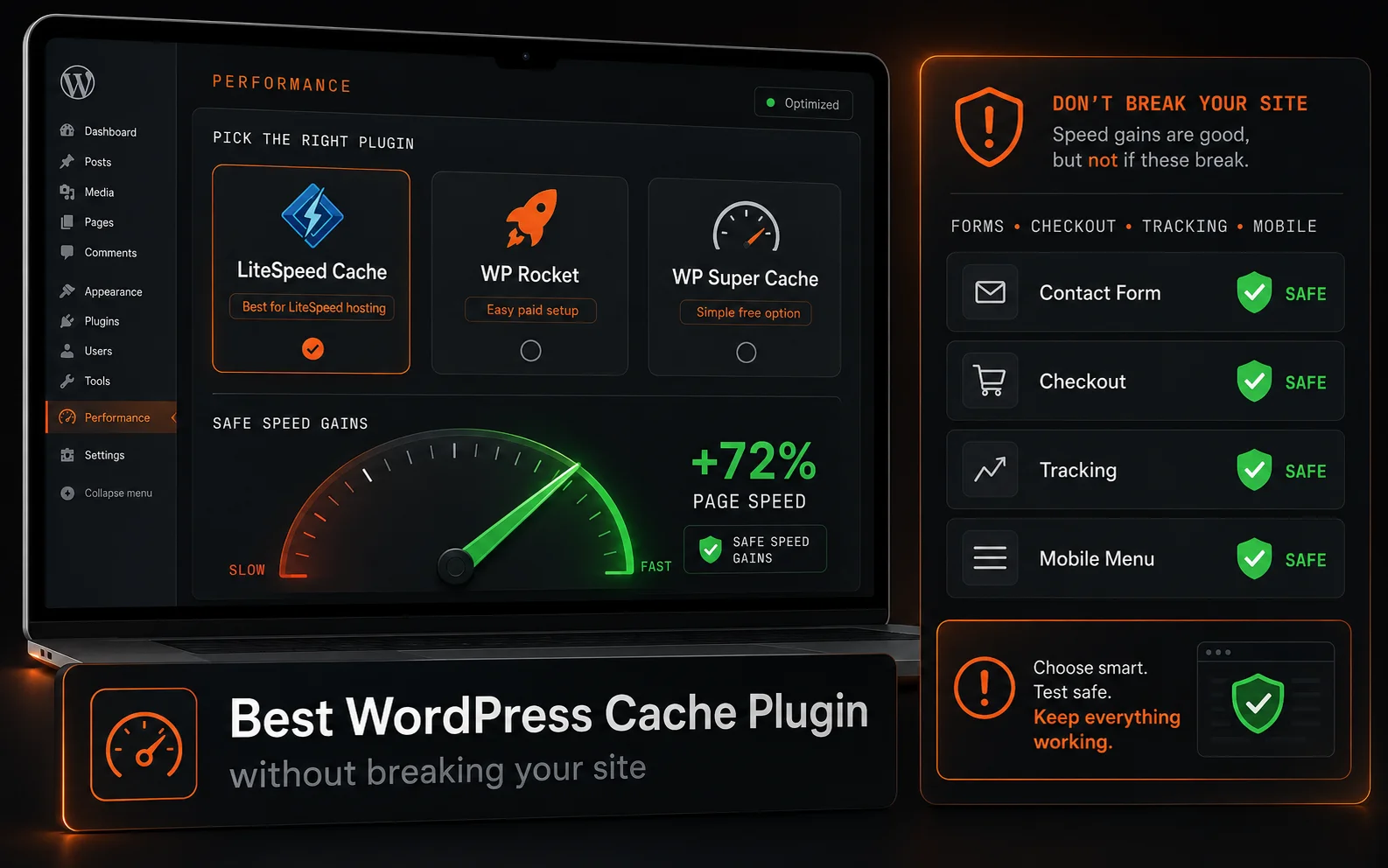
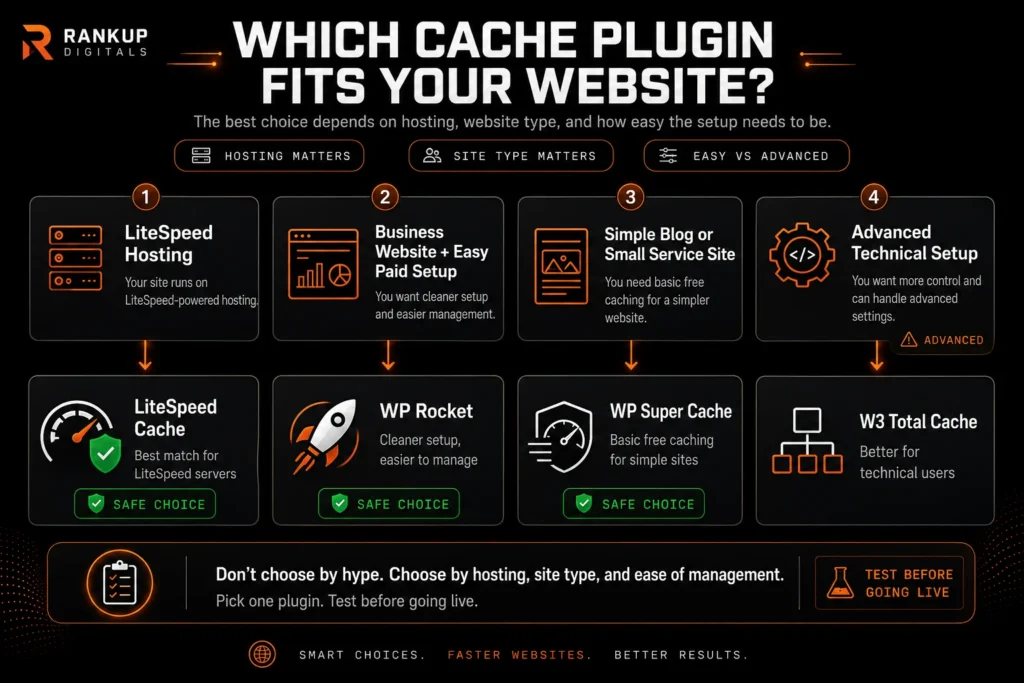
If the site is on LiteSpeed hosting, LiteSpeed Cache is usually the first plugin I’ll test. If the business owner wants something cleaner and paid, WP Rocket is easier to manage. If it’s a simple blog or service website, WP Super Cache can still do the job without adding too much noise.
But the best plugin is not the one that gives you the prettiest speed score.
It’s the one that makes the site faster and leaves everything working.
Don’t Pick a Cache Plugin Before Checking the Server
This is the part most business owners skip.
They search Google, read three plugin reviews, install the plugin with the biggest name, and then wonder why the result is average.
Cache plugins don’t work in a vacuum. Your hosting setup matters. A lot.
LiteSpeed Cache, for example, makes the most sense when the server itself is running LiteSpeed. That’s where its real strength comes from. On the wrong hosting setup, you may still get some useful optimization options, but you’re not getting the full server-level benefit people talk about.
WP Rocket is different. It’s paid, but it’s built more for people who don’t want to fight with 50 settings. I like it for business websites where the owner or marketing manager may need to clear cache, update pages, and keep moving without calling a developer every time.
Then there’s WP Super Cache. It is not fancy or trendy, but it is still useful for simple blogs and small service websites.
That’s the honest answer. Not exciting, but useful.
A Fast Site Is Useless If Leads Stop Coming In
This is why I don’t judge cache plugins only by PageSpeed score.
Yes, speed matters. Core Web Vitals measure how fast a page loads, how quickly it responds, and whether the layout shifts while someone is using it.
But for a business website, speed is not the only job.
Your form needs to work.
Your phone button needs to work.
Your checkout needs to work.
Your tracking needs to work.
Your mobile menu needs to work.
I’d rather have a site load in two seconds and bring leads than a site with a 98 score and a broken quote form.
That sounds obvious until you see how many people sacrifice working features just to chase a cleaner report.
Caching should support the business. It shouldn’t become the business.
My Real Pick Depends on the Type of Website
For a normal small business website, I’d usually keep the choice simple.
If the hosting supports LiteSpeed properly, start with LiteSpeed Cache.
If the owner wants a paid plugin that’s easier to manage, WP Rocket is a safer recommendation.
If the site is very basic, like a blog or a small service website with only a few pages, WP Super Cache can still be enough.
I’m more careful with WooCommerce sites.
Cart pages, checkout pages, account pages, recently viewed products, coupons, currency switchers, and booking tools can all behave badly when caching is too aggressive.
I don’t care if a plugin says it works with WooCommerce. I still test it like a customer.
Add product to cart.
Remove product.
Apply coupon.
Open checkout.
Submit a test form.
Check mobile.
Check tracking.
That boring testing is where bad setups get caught.
If your site already has custom theme issues, plugin conflicts, or page builder bloat, a cache plugin won’t magically fix everything. That’s where proper business website design matters more than switching plugins every week.
Settings I Don’t Turn On Blindly
This is where people usually break things.
They open the cache plugin dashboard and start enabling every option because more settings feels like more speed.
Page cache? On.
Minify CSS? On.
Combine CSS? On.
Delay JavaScript? On.
Remove unused CSS? On.
Lazy load everything? On.
Then the mobile menu stops opening.
Or the contact form loads late.
Or Google Ads tracking stops firing.
I don’t set up caching like that.
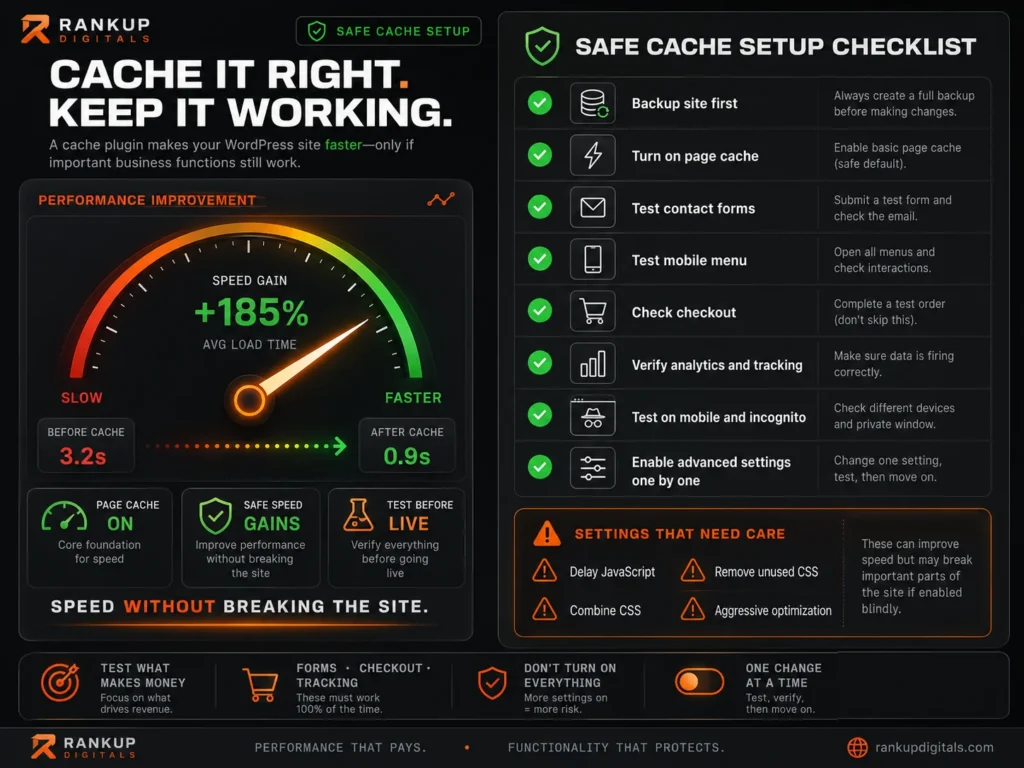
For most sites, I start with page caching first. Then I test. After that, I move slowly through image loading, CSS optimization, and JavaScript settings.
JavaScript delay is the one I treat carefully.
It can improve scores, but it can also break sliders, forms, chat widgets, analytics, call tracking, popups, booking calendars, and checkout scripts.
So if you’re not technical, don’t turn on every advanced setting just because a YouTube tutorial told you to.
Start simple.
Get the site stable.
Then improve one thing at a time.
The Cache Plugin Won’t Fix a Messy Website
I’ll be blunt here.
A cache plugin can help a slow WordPress site, but it can’t save a badly built one.
If your homepage has huge images, five sliders, ten tracking scripts, heavy fonts, unused plugins, and a page builder loading files everywhere, caching will only cover part of the problem.
You might get a better repeat load. Good.
But first-time visitors still have to download the heavy stuff.
That’s why I check the basics before blaming the cache plugin:
Are the images resized and compressed properly?
Is the theme loading unnecessary files?
Are inactive or weak plugins still sitting there?
Is the hosting slow?
Are popups, ads, chat tools, and tracking scripts slowing the page?
Is the page builder adding too much code?
For SEO, speed helps. But speed alone won’t rank a weak website.
You still need useful pages, clean structure, internal links, search intent match, and proper small business SEO services behind the site.
A fast empty page is still an empty page.
How I’d Choose for Most Business Owners
If you just want a straight answer, here it is.
Use LiteSpeed Cache if your hosting runs LiteSpeed and supports it properly.
Use WP Rocket if you want a cleaner paid plugin that’s easier for a business owner or marketer to manage.
Use WP Super Cache if the site is simple and you only need basic page caching.
I wouldn’t start a normal small business owner with W3 Total Cache unless someone technical is managing it.
It’s powerful, yes.
But powerful doesn’t always mean practical.
A local dentist, contractor, salon, consultant, or small ecommerce owner doesn’t need a plugin dashboard that feels like a server control panel. They need a faster website that still works after updates.
That’s the whole point.
Test the Site Like a Customer
After caching is turned on, don’t just refresh the homepage and celebrate.
Test the parts that actually affect money.
Contact form.
Quote form.
Phone number button.
Checkout.
Booking calendar.
Newsletter signup.
Google Analytics.
Google Ads conversion tracking.
Live chat.
Mobile menu.
Sticky header.
Blog layout.
Open the site in incognito. Test it on mobile data. Try it like a real visitor who doesn’t care about your PageSpeed report.
Because that’s who the site is for.
If caching improves the score but blocks leads, it failed.
Final Advice Before You Install Anything
Don’t chase the perfect cache plugin.
Choose the plugin that matches your hosting, your website type, and your ability to manage it without breaking things.
For most small business owners, the best WordPress cache plugin is the one that improves speed without creating new technical headaches.
LiteSpeed Cache is my first choice on LiteSpeed hosting.
WP Rocket is my cleaner paid choice when ease matters.
WP Super Cache is still fine for simple websites.
And if none of them gives you a real improvement, stop changing plugins and look deeper. Hosting, theme quality, image sizes, scripts, plugins, and page structure usually matter more than people want to admit.
If your site needs speed work without breaking forms, design, checkout, or tracking, that is when a proper WordPress speed audit makes more sense than guessing inside plugin settings.
Quick Questions Before You Choose a Cache Plugin
What is the best WordPress cache plugin for most sites?
For most small business sites, it depends on hosting. If your hosting uses LiteSpeed, LiteSpeed Cache is usually the first choice. If you want a cleaner paid setup, WP Rocket is easier to manage. For a simple blog or small service site, WP Super Cache can be enough.
Can a cache plugin break my WordPress site?
Yes, if settings are turned on blindly. JavaScript delay, CSS combining, aggressive minification, and lazy loading can break forms, menus, sliders, checkout, tracking, and popups. That’s why testing matters after every major setting.
Is WP Rocket better than LiteSpeed Cache?
Not always. WP Rocket is easier for many business owners to manage, but LiteSpeed Cache can be stronger when the site is hosted on a LiteSpeed server. The better choice depends on your hosting and how technical you want the setup to be.
Do WooCommerce sites need different cache settings?
Yes. WooCommerce sites need more careful caching because cart, checkout, account pages, coupons, and dynamic product features can break if caching is too aggressive. Always test checkout and cart actions after enabling cache.
