
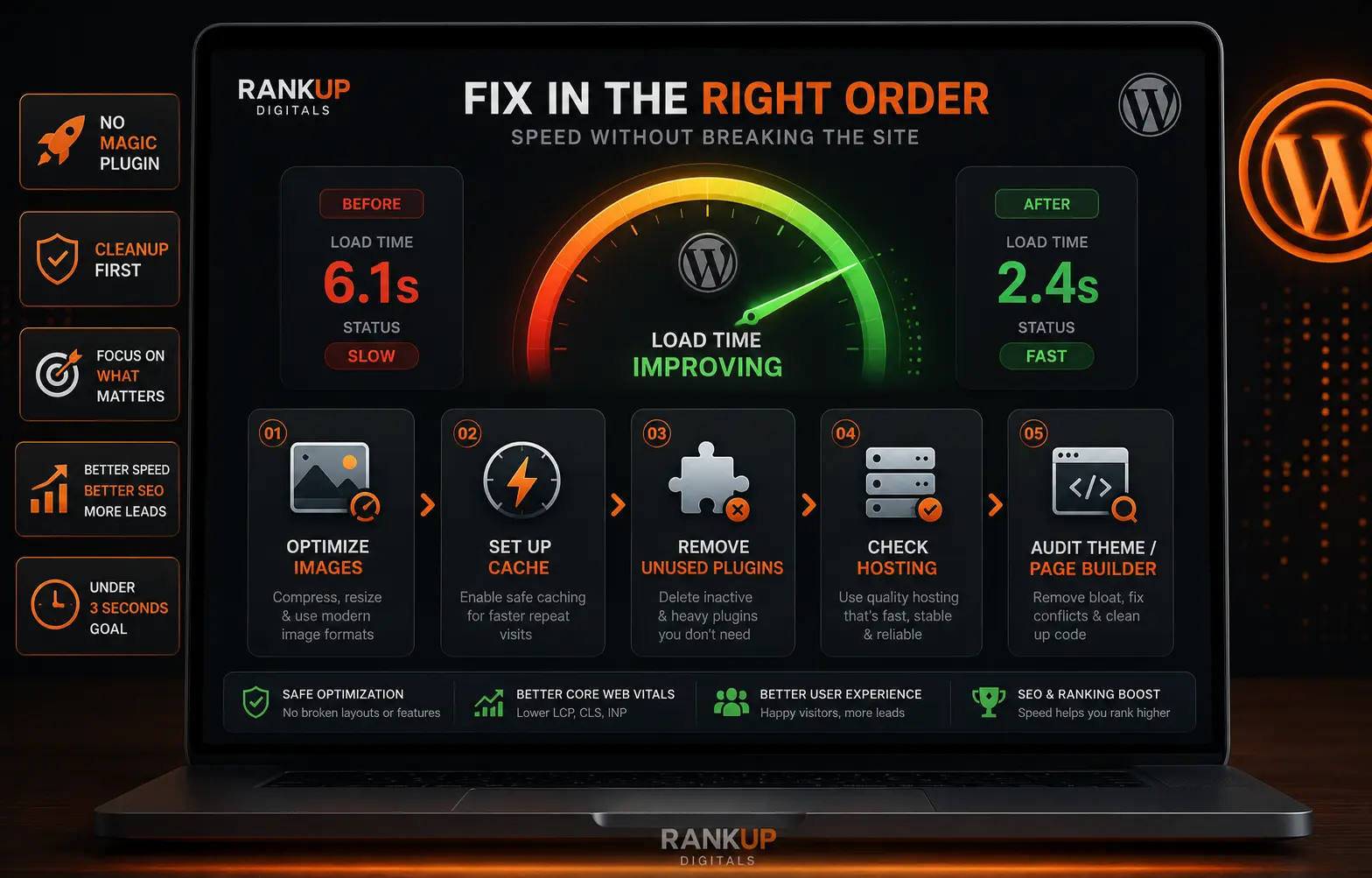
You opened PageSpeed Insights and saw a score in the red. Your site takes five or six seconds to load when it used to feel faster a year ago. If you searched how to speed up WordPress and got recommendations for ten different plugins, you probably already feel like you are going in circles.
The truth from inside agency work is much simpler. A slow WordPress site usually carries years of buildup: too many plugins, oversized images, weak hosting, themes layered on top of page builders. Cleanup in the right order is what moves load time, and the order matters more than any single plugin you can install.
This guide walks through the steps I follow when I take a slow site apart and get it back under three seconds. The same cleanup most owners can do across an afternoon or two without paying for a rebuild.
Heavy Images Are Usually the First Problem
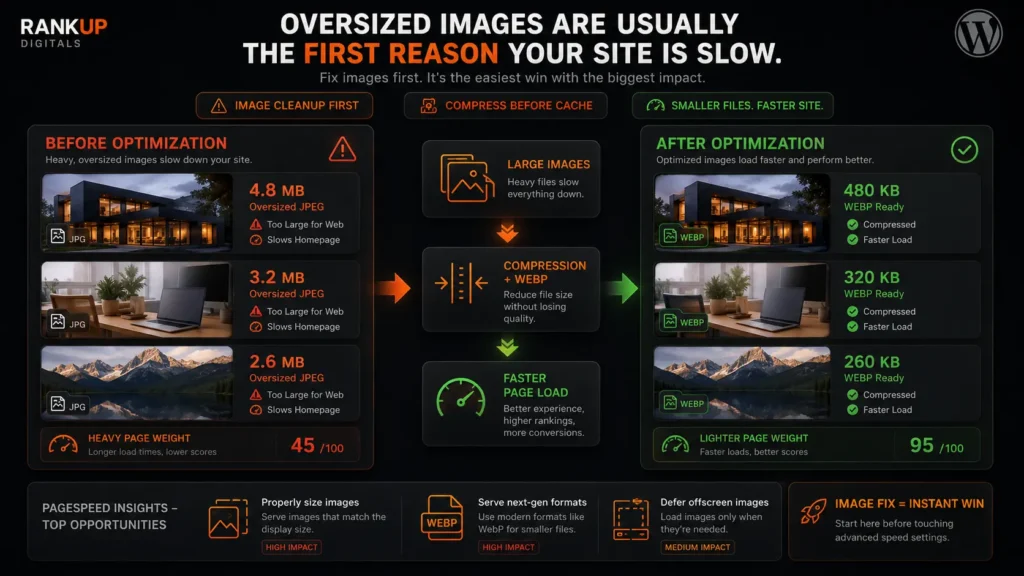
Open your homepage in PageSpeed Insights and look at the Opportunities section. Eight times out of ten the biggest line items are image-related: properly size images, serve images in next-gen formats, defer offscreen images. The root issue is the same in every case, which is that someone uploaded photos that were never optimised for the web.
Most images come straight from a phone, a stock site, or a designer who saved everything as a high-resolution JPEG. A homepage that should weigh under one megabyte ends up at six or seven, and every visitor pulls all of it down on the first load.
Fixing this is the lowest-effort step in the whole process. Install a single image optimisation plugin like ShortPixel or Imagify and run a bulk compression on your media library. Most of these tools shrink images by 60 to 75 percent with no visible quality drop, and they convert older JPEGs into WebP, which modern browsers handle more efficiently.
On client cleanups I have run, this one step often drops load time from six seconds to three or four with no other changes.
Cache Plugin Is Step Two, but Keep It Simple
Once images are compressed, caching is next. The role of a cache plugin is straightforward. Instead of generating a page from scratch on every visit, the plugin stores a built version and serves it to the next visitor, which cuts server response time and speeds up repeat loads.
For this guide, the work is simpler than most articles make it sound. Choose one cache plugin, turn on page caching, browser caching, and GZIP or Brotli compression. That combination covers what most sites need. The advanced settings like JavaScript delay, CSS combine, and aggressive minification can break forms, sliders, and tracking if they are not tested with care, so leave them off on the first pass and revisit later.
If you need help comparing LiteSpeed Cache, WP Rocket, and WP Super Cache or want to know which settings to avoid breaking forms and checkout, our guide on the best WordPress cache plugin covers that in detail. For this article, treat caching as one step in a larger cleanup rather than the whole job.
Too Many Plugins Slow the Site Over Time
On audit calls I open sites with twenty to thirty active plugins, where the owner only uses about five or six of them on a regular basis. The rest were installed for some feature that came up a year or two ago, never removed when the need passed, and are still loading scripts and database queries on every page view.
Open Plugins in your WordPress dashboard and go through the list with fresh eyes. For each one, ask yourself when you last used the feature it provides. Things I see almost every time:
- Backup plugins running alongside the hosting provider’s own backup system
- Social sharing plugins loading icons on every page even where there is nothing to share
- Two or three SEO plugins someone installed and forgot to deactivate when switching to Rank Math or Yoast
- Page builder add-ons for elements no longer used anywhere on the site
- Form plugins for old contact forms that have been replaced
- Marketing plugins from a campaign that ended in 2023
Deactivate first, give the site three or four days, then delete what you have not switched back on. Most of these plugins do not break anything when removed. Removing ten to fifteen unused plugins typically takes a full second off page load time.
Hosting Becomes the Issue After Cleanup
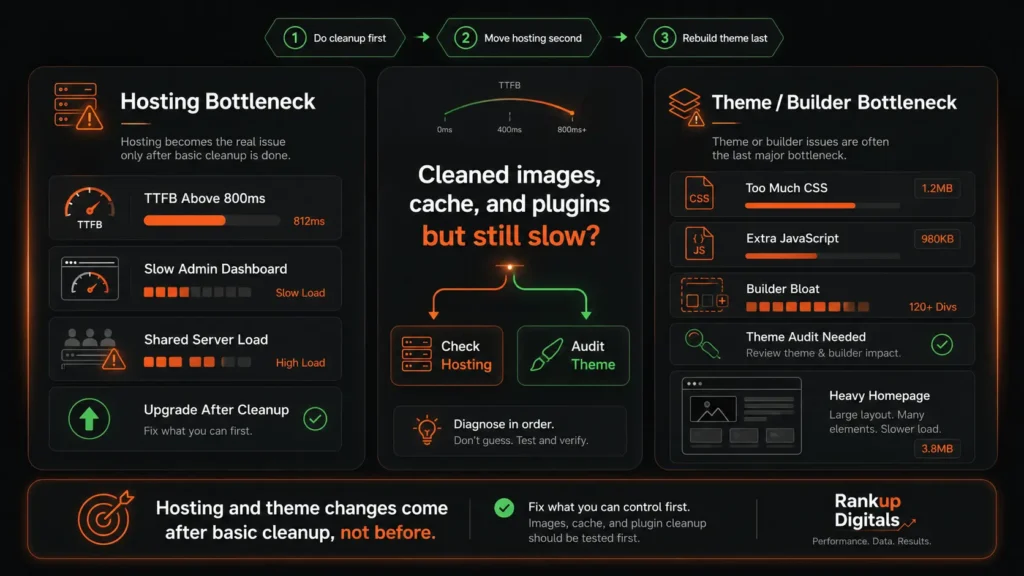
If images, caching, and plugins are all sorted but the site is still slow, hosting is the remaining lag. Owners often hold off on a hosting move because it sounds like a bigger project than the other steps, when in practice migrating a small business WordPress site is a half-day job and most managed hosts handle the move for you free of charge.
Budget shared hosting at three or four dollars a month is where most slow sites end up stuck. Your site shares one server with hundreds of others, all competing for the same memory and CPU. When another site on that server runs a heavy backup or gets a traffic spike, your load times take the hit, and no WordPress setting changes that.
Signs you have hit the hosting ceiling rather than a WordPress issue:
- TTFB stays above 800ms in PageSpeed Insights even with caching turned on
- The admin dashboard feels sluggish, since admin pages are not cached
- Load times are fine for one or two pages but tank on the rest
- You are on one of the budget mega-providers (Bluehost, HostGator, low-tier GoDaddy)
Managed hosting in the twenty-five to forty dollar a month range from Cloudways, Kinsta, or Rocket.net handles small business WordPress workloads well. On migrations I have run, TTFB drops by roughly half and total load time falls by one to two seconds, with no changes inside WordPress itself.
Do not move hosts before the previous three steps are done. A new host will not fix four megabytes of uncompressed images or thirty active plugins.
Heavy Themes and Page Builders Are the Final Wall
If image, caching, plugin, and hosting work are all done and the site is still slow, the theme is what is left. This shows up most often on sites built with heavy page builders like Divi, Elementor, or WPBakery, where the builder loads its full CSS and JavaScript library on every page even when the page uses only a couple of elements.
A simple headline section that should weigh around one kilobyte in raw HTML ends up at sixty to eighty kilobytes once it has been wrapped in builder divs, inline styles, and helper scripts. Across a homepage with five or six sections, page weight balloons before any content has loaded.
Switching themes is the biggest decision in a speed cleanup. Most business sites cannot rebuild overnight, and that is fine. What is worth knowing is that if you have worked through everything above and the site is still slow, the theme code is the bottleneck, and the fix is structural rather than configuration-level. A lightweight theme like GeneratePress, Kadence, or a properly coded custom theme handles the same content with a fraction of the page weight a heavy builder produces.
If you suspect the theme is the holdup and you are unsure how to test or migrate to a lighter one safely, ourWordPress development service handles theme audits and replacements as part of cleanup work. For owners planning a full rebuild instead of a cleanup, our website design packages cover speed setup from day one rather than as a later fix.
How to Speed Up WordPress in the Right Order
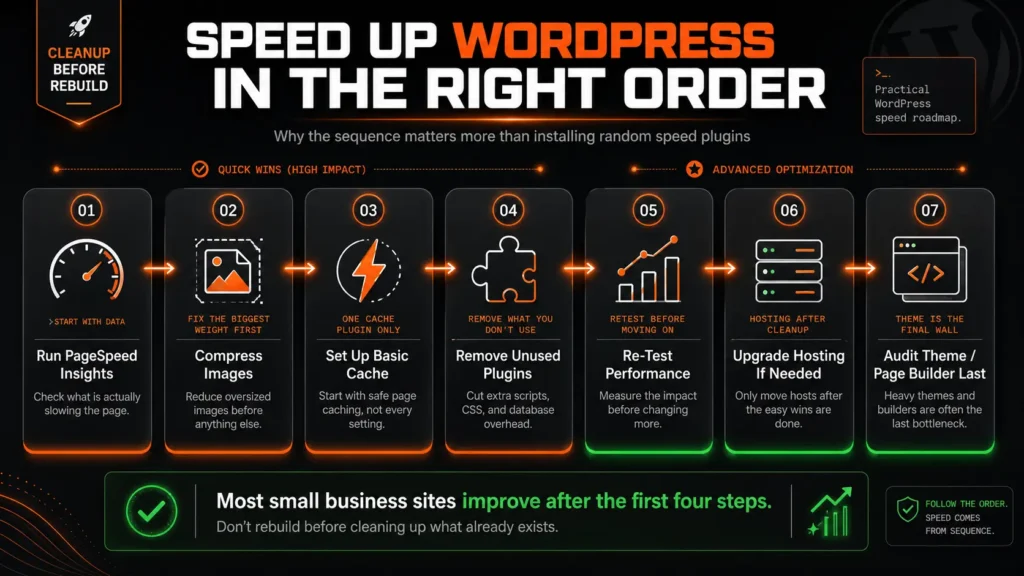
If you are sitting down to work on a slow site, the order I follow on a client job is this:
- Run PageSpeed Insights on the homepage and one or two interior pages
- Compress images using a single optimisation plugin and run a bulk operation
- Install one cache plugin with basic page caching, browser caching, and compression
- Trim the plugin list, deactivating anything unused for ninety days or longer
- Re-test in PageSpeed Insights to see what has shifted before moving on
- Move hosting to a managed provider if the site is still over three seconds
- Audit the theme only if the previous six steps have not closed the gap
Most small business WordPress sites land under three seconds after the first four steps. The hosting move takes the rest of the way to under two seconds, and the theme change is reserved for sites where the page builder is the underlying bottleneck.
If you have followed this list and the site is still slow, the issue is usually deeper in the codebase or a specific plugin conflict, and that is where a developer needs to look more closely. Drop us a note on the contact page if you would rather have the cleanup handled by someone who does this work weekly.
Common Questions Owners Ask About WordPress Speed
How long does a full WordPress speed cleanup take?
On a typical small business site, the cleanup runs three to five hours spread across a day or two. Most of that time is image compression running in the background and testing after each plugin removal. A hosting migration, if needed, adds another half day.
Will speeding up my site improve SEO rankings?
Speed is one of the ranking signals through Core Web Vitals, but not a single fix that lifts rankings alone. If speed problems come with crawl issues, indexing delays, broken redirects, or ranking drops, a technical SEO audit is usually the safer next step before making more random fixes. A faster site reduces bounce rate, improves the user signals Google watches, and removes the slow Core Web Vitals penalty. Combined with proper content work, the effect is usually visible in three to six months. For a full ranking plan that includes speed alongside on-page work and link building, see our small business SEO services overview.
Can I speed up WordPress without changing hosts?
For most sites loading in five or six seconds, the first three cleanup steps (images, caching, plugin trim) bring load time under three seconds without touching hosting. Hosting only becomes the bottleneck after those steps are done and the site still feels slow.
